How do I check where a phpark sign-in link actually takes me?
Before entering your phpark password, expand the browser address bar and compare the full hostname with an address you verified independently. Check it again on the page that actually asks you to sign in, since a link can send you elsewhere. If the hostname differs, or you have no verified address to compare it with, leave the form blank.
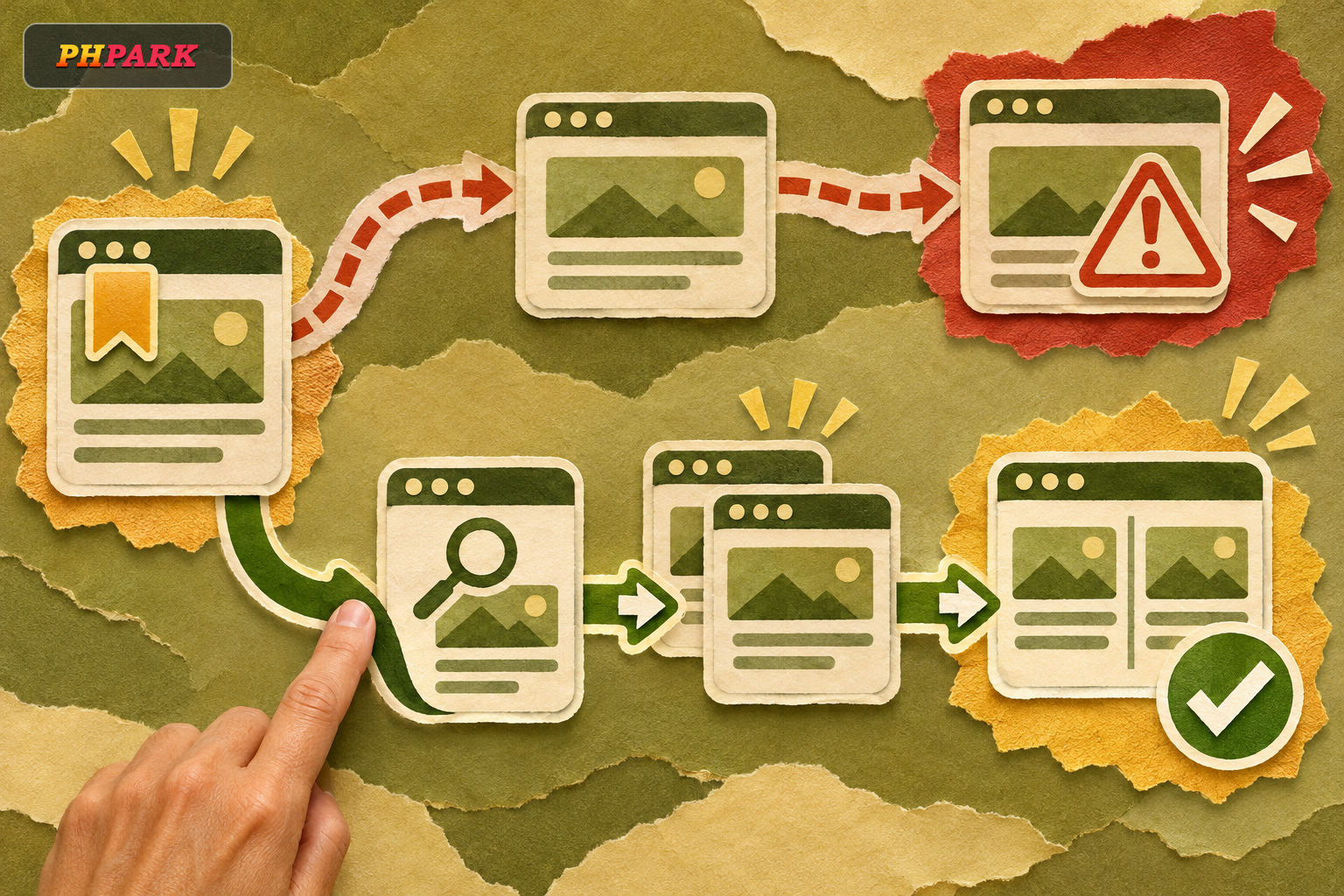
Before entering your phpark password, expand the browser address bar and compare the full hostname with an address you verified independently. Check it again on the page that actually asks you to sign in, since a link can send you elsewhere. If the hostname differs, or you have no verified address to compare it with, leave the form blank.
1. Decide whether the search result fits the site
Imagine you search for phpark on your phone and a result that appears to belong to a university promises a quick route to sign in. The title matches your search, but account access to a gaming site is out of place on a university page. A page under a familiar institutional domain can contain injected material or send visitors somewhere else. Treat a surprising match as a reason to skip the result. If you already opened it, leave any form untouched.
2. Read the hostname in the browser
Tap the address bar to reveal the full address. The hostname is the site name part of the address. In a standard web address it follows https:// and comes before the path. In the fictional example https://account.example/phpark/login, the hostname is account.example and /phpark/login is the path. The brand name in that path tells you nothing about who controls the host.
| What you see | What it tells you | Your next check |
|---|---|---|
| A search title that says phpark Login | The title describes a page as it appears in search. | Use a route you verified separately before entering details. |
account.example/phpark/login | The brand name is in the path under account.example. | Compare the hostname with your verified address. |
phpark.signin.example | The brand name is a label in front of signin.example. | Check the full hostname, including every dot and the ending. |
| A browser indicator for a secure connection | The connection to the displayed host is encrypted. | Confirm the host itself is the one you intended to visit. |
3. Compare again where the password goes
phpark's site materials show a Login entry. A copied page can display the same label and send you to a different address when you tap it. The address on the screen that collects your password is the one that matters for this check.
- Start with an address you established independently of the link under review. A bookmark saved after verification gives you a reference for future visits.
- Expand the browser address bar on the sign-in screen. Compare the spelling, dots, hyphens and ending. If it opens inside another app and the address is hidden, leave that view and start from your verified address in a regular browser.
- If the hostname changes unexpectedly, stop. A change can have an ordinary explanation, but confirm the new hostname through an independent route before using the form.
4. Respond based on what you entered
If you only opened a suspicious page and entered nothing, close it and return to your verified route when you need it. If you typed or pasted a password into the page, treat it as exposed even if you left before pressing the sign-in button. Change it through a verified route and replace it on any other accounts where you reused it. Record the hostname if it is still visible so you can describe where the form appeared.
Questions to check before you continue
Can I use a sponsored result if the logo looks right?
A logo and a search placement are easy to mistake for verification. Use your saved, verified route and compare the hostname on the final form.
What if my password manager normally fills the form but stays blank?
Pause and check the hostname before typing the password yourself. Autofill can fail for several reasons, and the address check gives you a concrete next step.
What if I have no verified address saved?
Leave the form blank. Use an independently established reference if you have one, and bookmark the address only after verification. A second search result repeating the same link gives you no independent check.
Make the address check a habit
Open your verified bookmark, tap the address bar where the password goes and compare the full hostname. If you cannot explain a mismatch or see the full address, close the form and verify the destination before returning.